
VR library manager for Windows
Your private
screening room.
Organize your adult VR library with a customizable home screen, live scene matching, and HereSphere integration. Veyra runs locally on Windows and opens in your browser.
Runs locally · opens in your browser
Windows is the current release. Linux binaries and Docker support are planned for later releases.
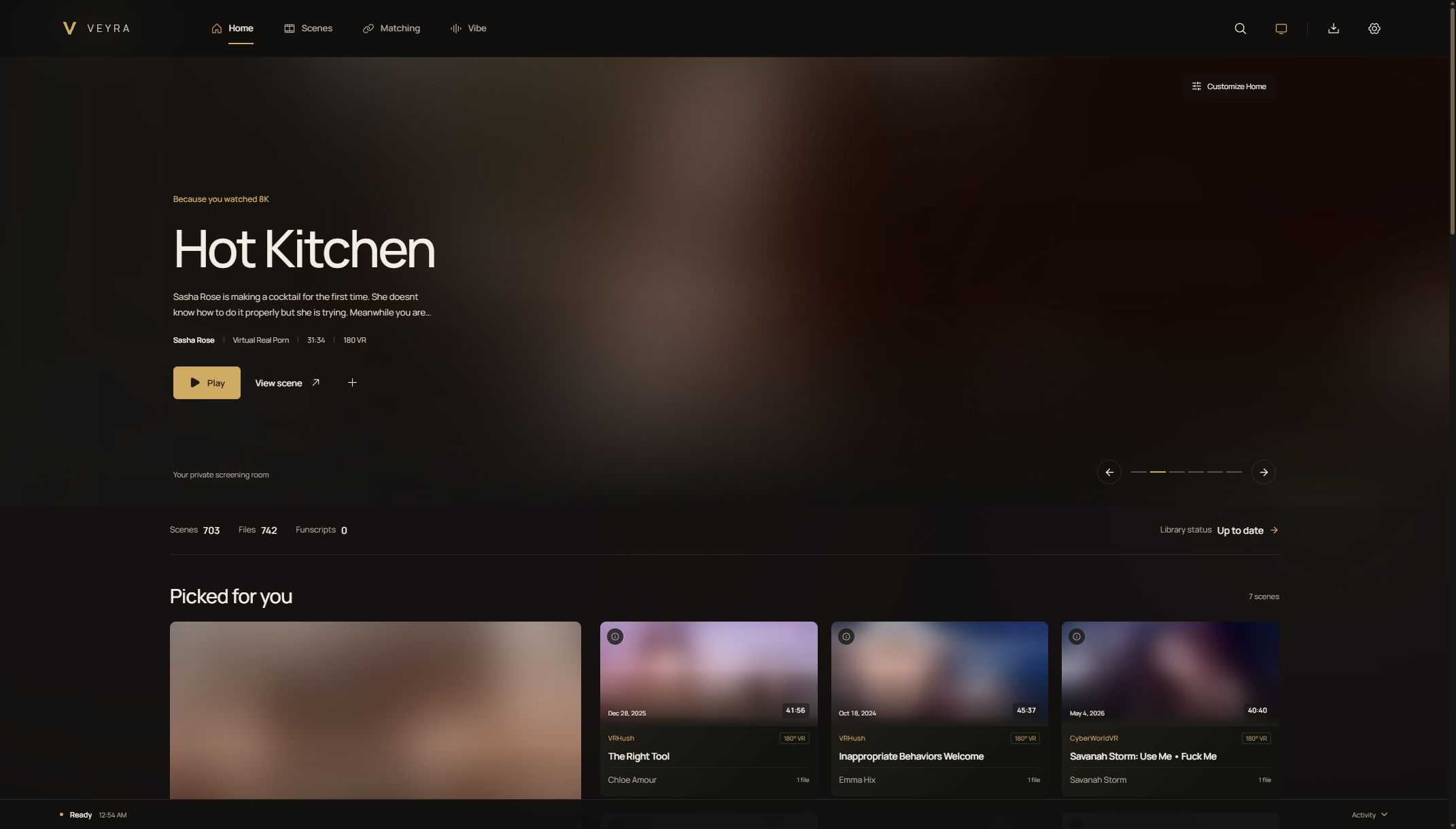
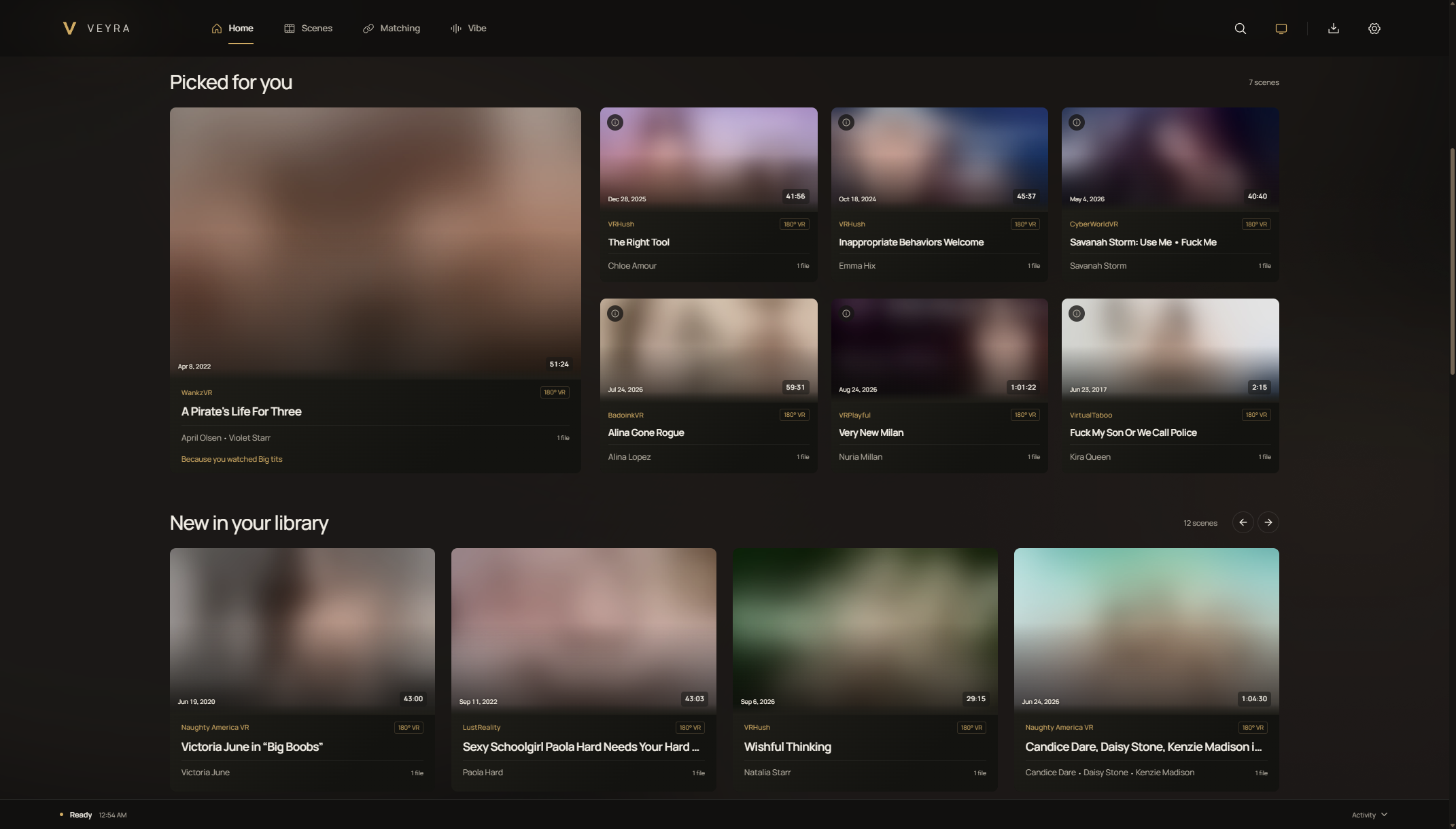
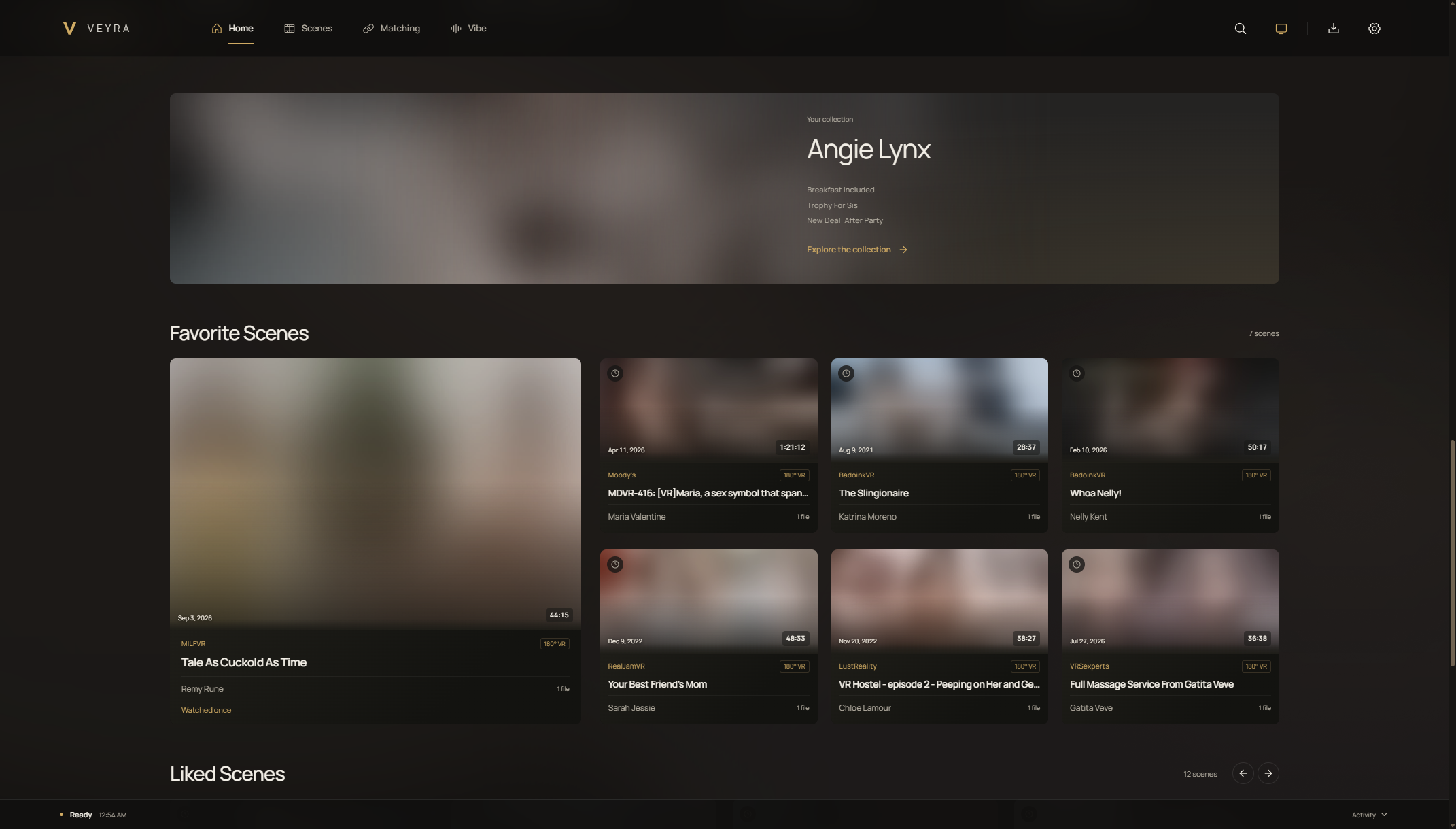
Home + Library
Your library.
Your layout.
Choose the sections on your home screen, change their layout, and put them in your own order. Find something new with Picked for you, based on your watch history, or return to new additions and recently watched scenes.
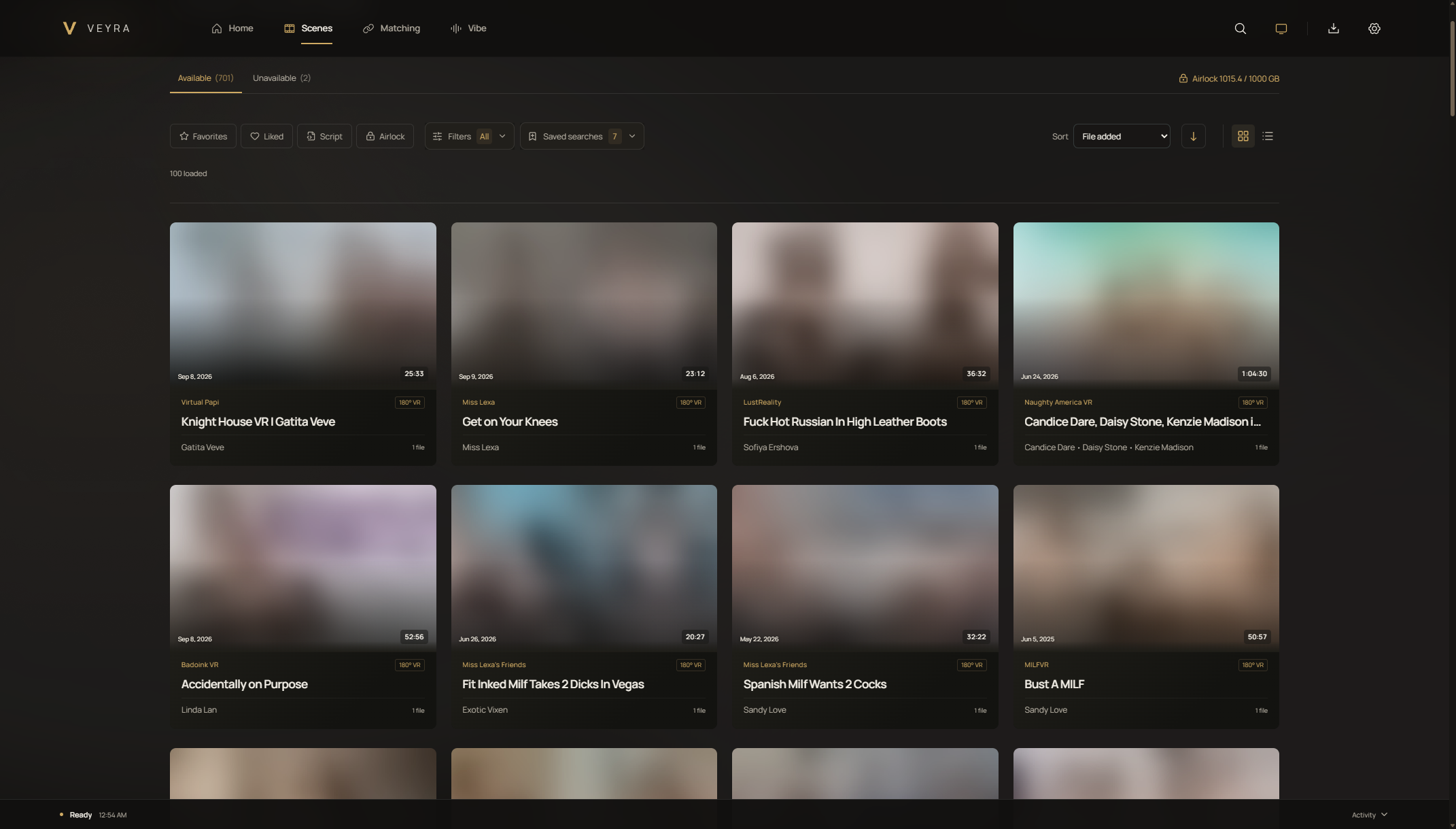
SCENES + CUSTOM SEARCHES
Find it.
Make it yours.
Search and filter your scenes, then save the combinations you return to. Name and reorder your custom searches, and bring them onto Home as collections with their own layout.
Good, or an all-time favorite?
Likes and favorites are separate, so you can filter for either.
See what is ready to play.
Switch between available and unavailable scenes without losing track of your collection.
Live scene matching
Match scenes without
importing entire catalogs.
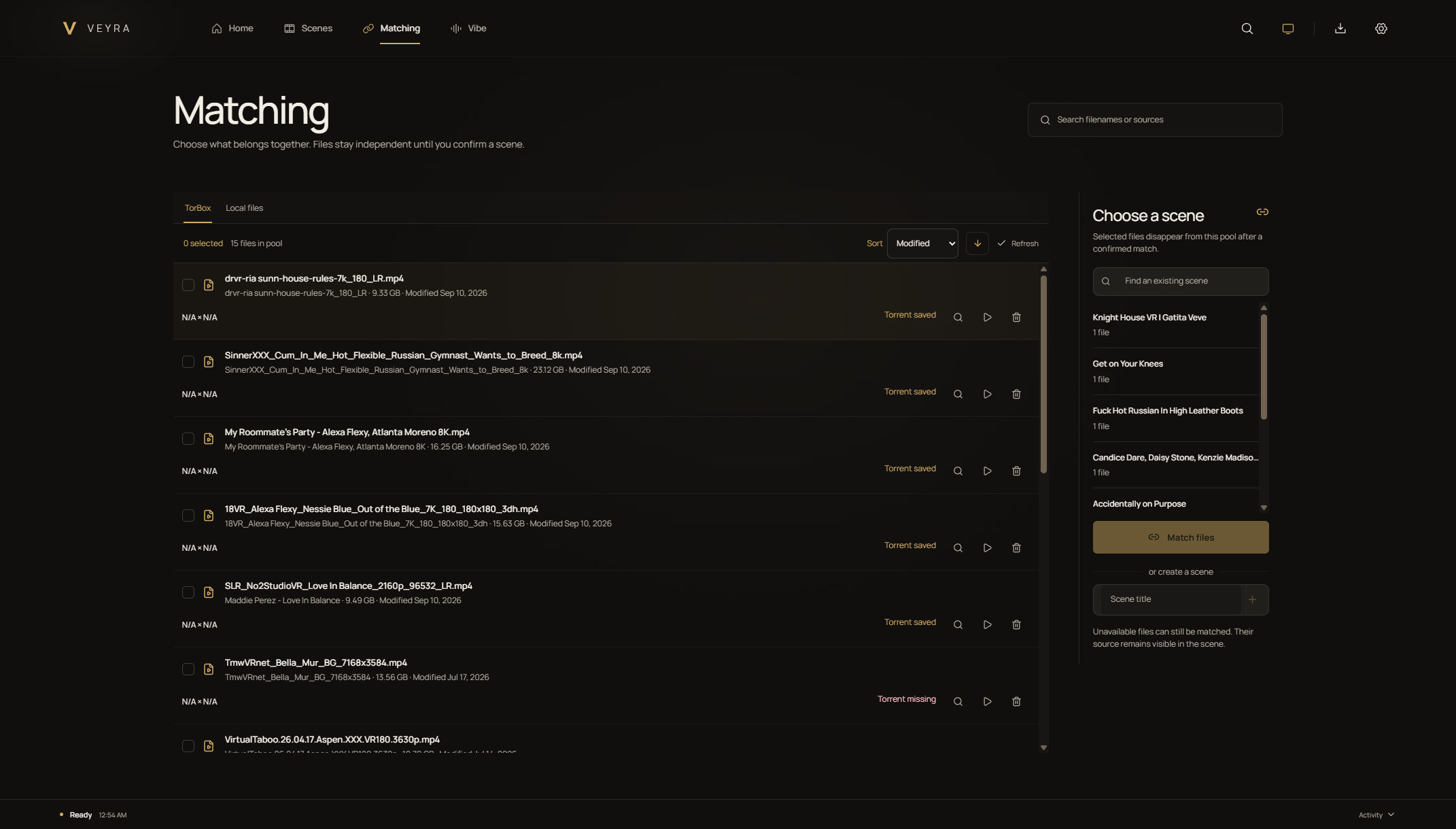
Find the information for the files you have. Veyra searches supported providers live when you match a scene, without first filling your database with their entire catalogs.
Pick a file.
Find its scene.
Select a file, use or edit the search term, and search across supported providers. Choose the right result to add its scene information to your library.
Only what you choose.
Import the matching scene, not a catalog of scenes you do not own.
Details kept locally.
Available metadata, covers, tags, and previews are saved for that scene, ready for browsing your library.
HereSphere on Quest
From desktop
to headset.
Manage your library in Veyra and play it through HereSphere on Quest. Your custom searches appear in the order you set in Veyra, so your collections stay familiar in the headset.
- 01Start on Windows
Launch the Veyra application on your computer.
- 02Open your library
Organize scenes and saved searches in your browser.
- 03Watch on Quest
Connect HereSphere to Veyra to browse and play your library.
Storage + Transfers
Local files.
Optional TorBox integration.
Use Veyra with local files on their own, or connect your own TorBox account with its API key. The integration brings file detection and transfers into the same interface.
Add your media folders and organize your files. No TorBox account is needed for local media.
The Detection Editor identifies VR files in your TorBox account. Start with built-in rules and adjust what is included or excluded.
See active downloads, files waiting in Veyra’s queue, and transfers that need attention. Check which scenes are available to play.
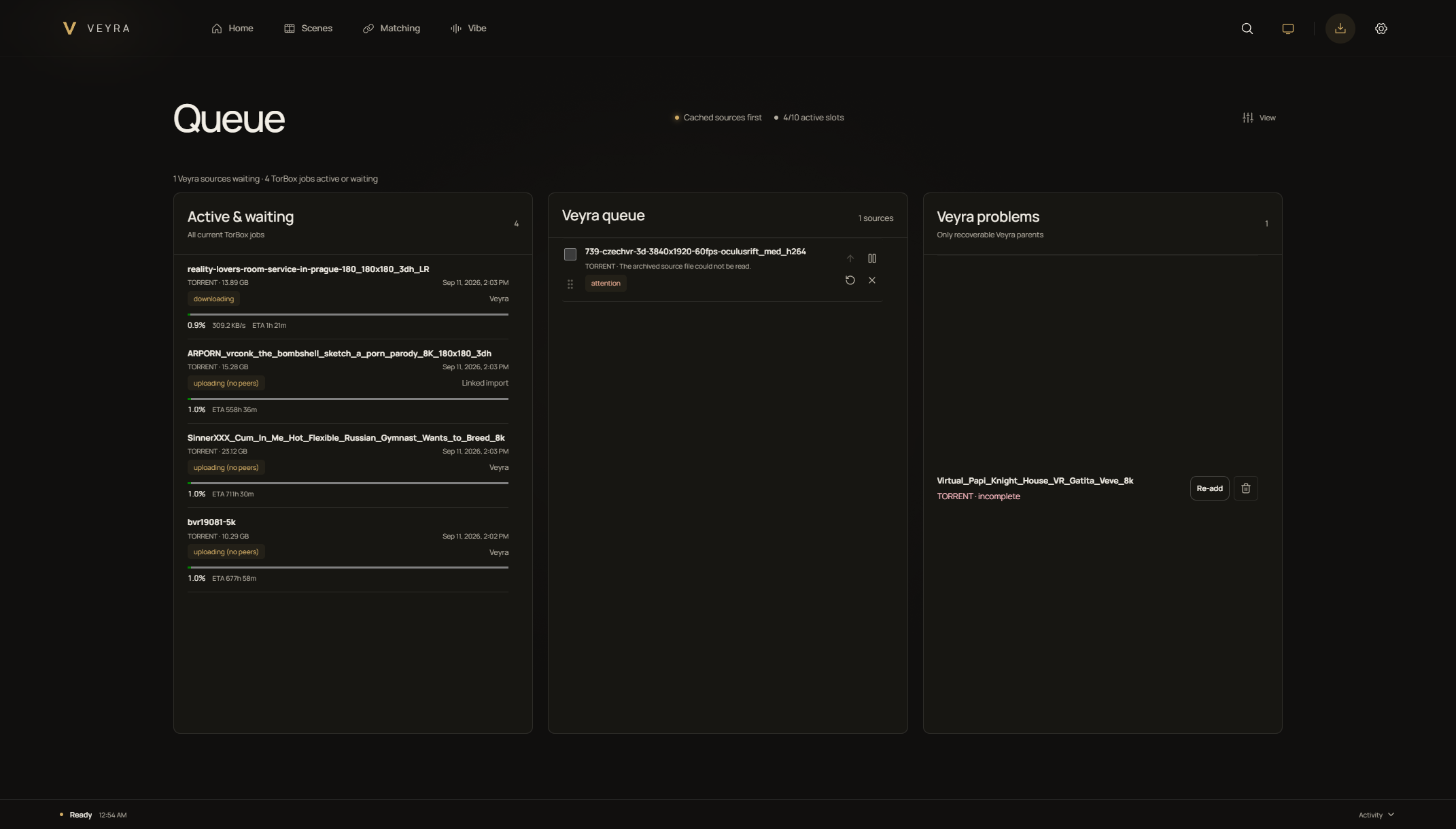
Active transfers, queued files, and problems in one view.
A closer look
See Veyra
in motion.
Take a closer look at browsing the library, matching files, and managing the queue, then explore Vibe and Ambient Room.
A library with a little atmosphere
Set the room.
Press play.
Beyond your VR library, Vibe and Ambient Room bring video, light, and visualizers to your desktop.
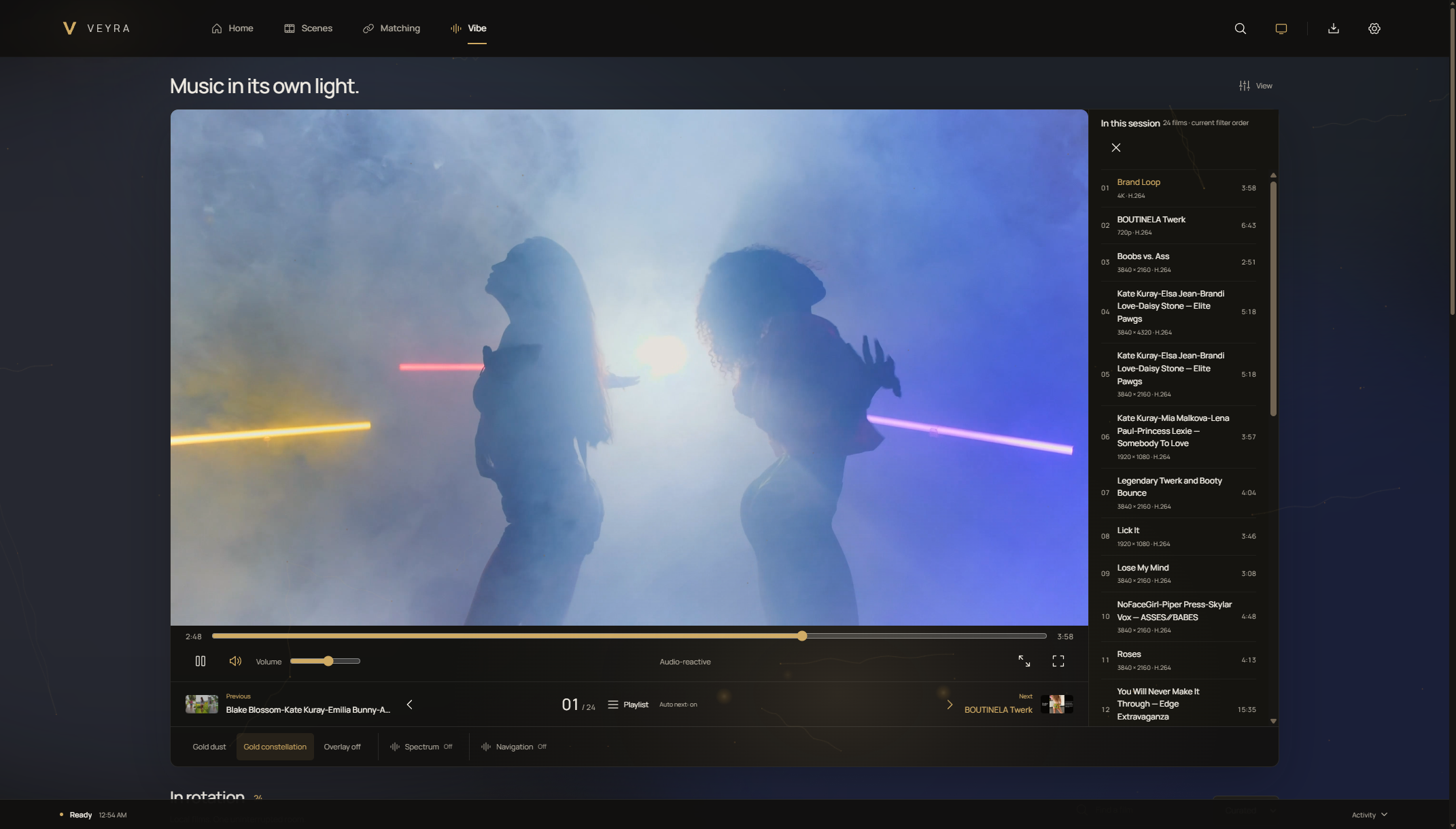
VIBE / 2D PMV PLAYER
Music, motion,
one beautiful frame.
A dedicated player for flat, 2D PMVs, with a playlist, a full-area visualizer, and ambient light that follows the video’s colors. This is a desktop experience, not a VR player.
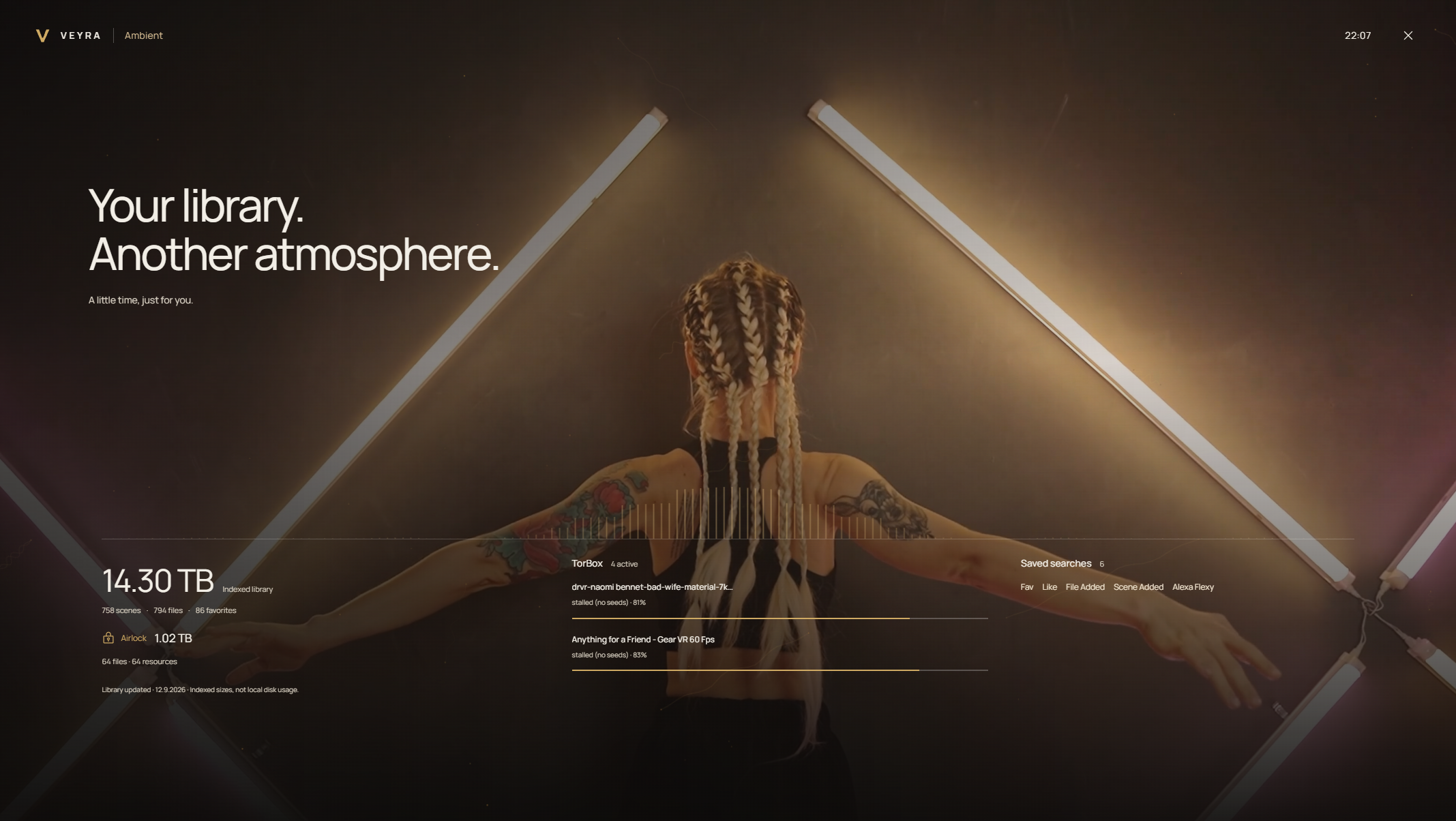
AMBIENT ROOM
Let the room stay
quietly alive.
Fill your screen with a background video and visualizer. Library information, transfer status, and the clock stay in view while the video plays.
The useful bits
A few things
worth knowing.
What is Veyra?
Veyra is an adult VR library manager for Windows. You run the application on your computer and use its interface in your browser to organize files, match scenes, and browse your collection. It is not a hosted streaming service.
Does Veyra include videos?
No. Veyra manages your own media library. Videos and content subscriptions are not included.
Do I need TorBox?
No. Veyra works with local media folders without TorBox. If you want to use the optional integration, connect your own TorBox account using its API key. A TorBox account is not included with Veyra.
How does Veyra work with HereSphere?
Connect HereSphere on Quest to the running Veyra application to browse and play your library. Custom searches appear in the order you set in Veyra. HereSphere is a separate player; Veyra is the library manager.
How is Veyra different from XBVR?
XBVR’s documented setup starts by scraping scene information into a local catalog. Veyra searches supported providers live when you match a file and stores the scene information you choose. Veyra also gives you a customizable home screen with recommendations based on your watch history and collections built from saved searches.
How does the private beta work?
Places are limited, and testers are selected to cover different setups and experience levels, from first-time users to experienced collectors. Selected testers receive a free lifetime license for Veyra V1 and are asked to use the app and share feedback. Applying does not guarantee a place. Applications are open.
Private beta
Help shape Veyra.
A small group of testers, different setups, and honest feedback. Help make Veyra work as well for your library as it does for mine.
Your library.
Your feedback.
Selected testers receive a free lifetime license for Veyra V1. Places are limited, and feedback is part of taking part.
HereSphere power users, experienced collectors, and complete beginners are all welcome. You do not need an elaborate setup to help.
Veyra community
Build it together. Join the Discord for support, bug reports, setup discussions, and beta feedback.
Paid access will follow the private beta.